Settings
All options are in WooCommerce > Settings > Gift Cards. The gift card email is configured in WooCommerce > Settings > Emails.
General
| Setting | What it does |
|---|---|
| Issue gift cards when the order is | Processing (paid) — the default — or Completed. Codes are created and emailed at this status. |
| Code prefix | Optional letters/digits added in front of every code, e.g. GIFT gives GIFT-7KQ2-M9XA-T4PB-H3ZD. |
| Default amounts | Amounts pre-filled for new gift card products. |
| Message length | Maximum characters of the personal message (0 = no limit). |
| Live preview | Shows a preview of the card on the product page that updates while the customer types. |
| Default gift card image | Card image for the preview and the email when the product has no image. |
| Show codes to the buyer | Shows the issued codes in the buyer's order details and order emails (useful when the recipient loses the email). |
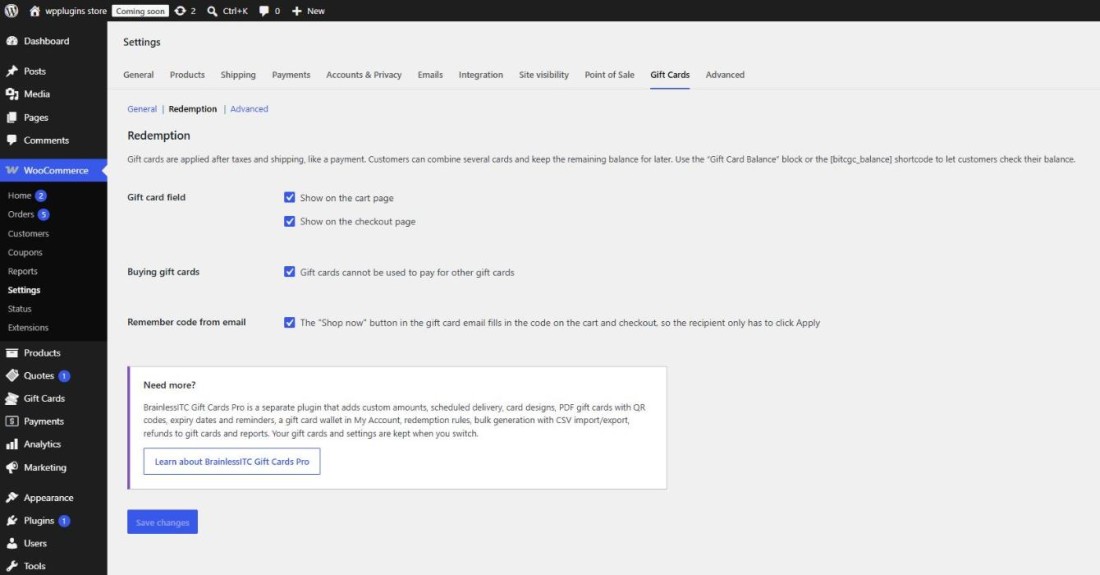
Redemption
| Setting | What it does |
|---|---|
| Gift card field | Show the gift card field on the cart page and/or the checkout page (classic pages and blocks). |
| Buying gift cards | When on (default), gift cards cannot be used to pay for other gift cards. |
| Remember code from email | The Shop now button in the email remembers the code in the browser and fills it in on the cart and checkout; the recipient clicks Apply. |
Advanced
Remove data on uninstall — when enabled, deleting the plugin removes all gift cards, their history and the settings. Gift card products and orders are kept. Data is never removed while the Pro edition is installed. Off by default.
The gift card email
In WooCommerce > Settings > Emails > Gift card you can enable/disable the email, change the subject, heading and additional text, choose HTML or plain text, and send a blind copy to the buyer. Placeholders: {amount}, {sender_name}, {recipient_name}, {site_title}. Use the preview to see the result with sample data.