Managing gift cards
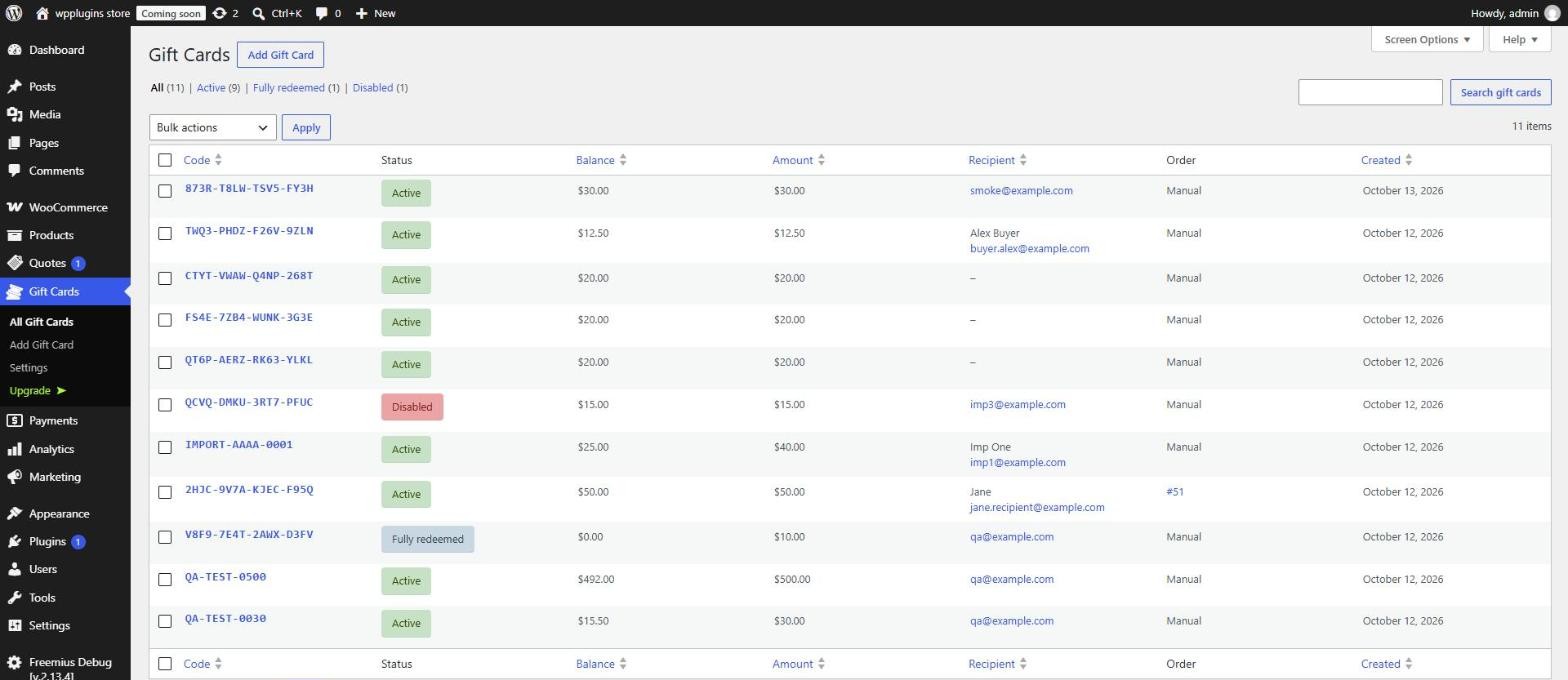
Every gift card — bought or created manually — is listed in Gift Cards in the admin menu.
Statuses
- Active — has a balance and can be used.
- Fully redeemed — the balance is zero.
- Disabled — cannot be used at checkout (disabled by you, or because the purchase order was cancelled or refunded).
- Expired — the expiry date has passed (Pro).
The gift card screen
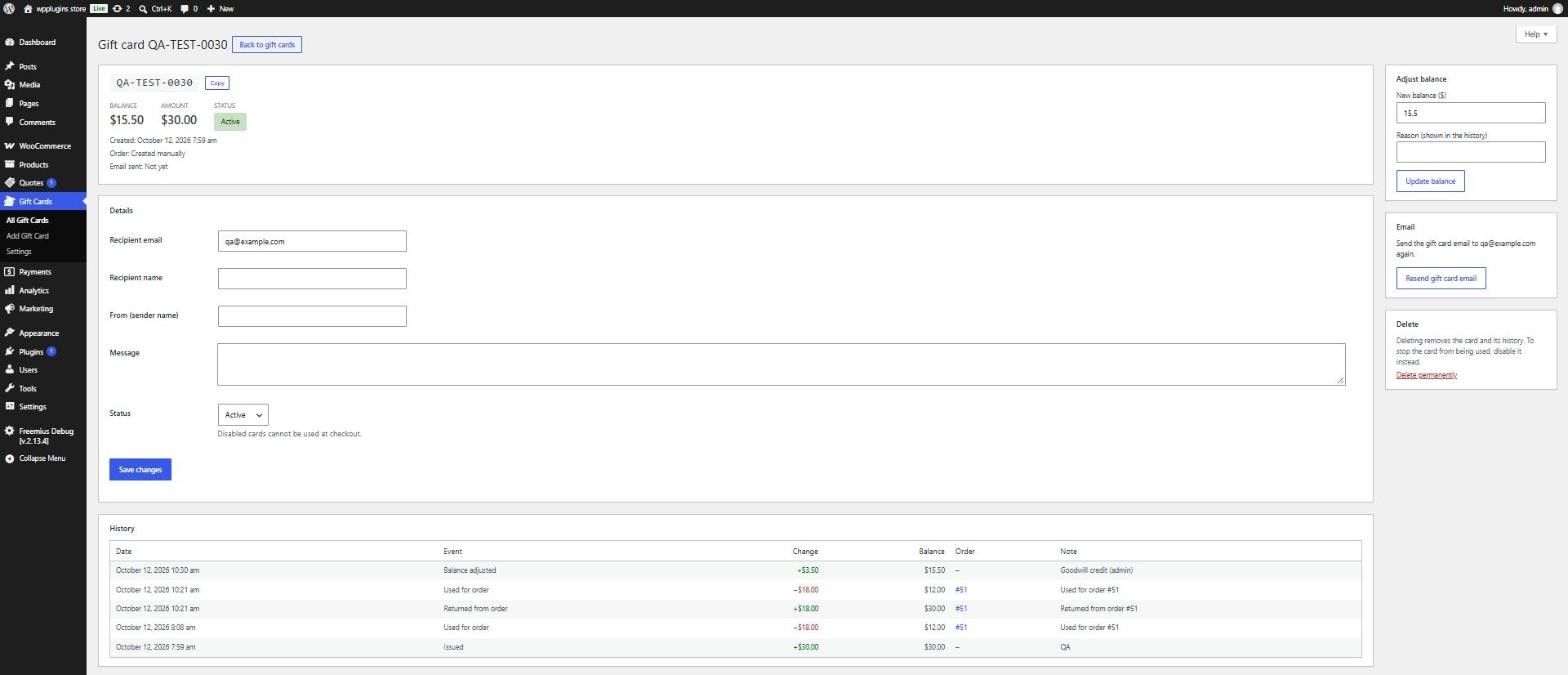
Click a code to open it. You can:
- change the recipient, sender name and message, and enable or disable the card;
- adjust the balance with a reason that is saved in the history;
- resend the gift card email;
- see the full history: issued, used for orders, returned from cancelled orders, adjustments and emails;
- delete the card (disable it instead if you want to keep its history).
Creating gift cards manually
Gift Cards > Add Gift Card creates a card without an order — for giveaways, store credit or replacements. Enter the amount, optionally your own code (at least 6 letters or digits), the recipient and a message, and email it right away.
Orders
- Gift cards used for an order are shown in the order totals (admin, emails, My Account) as Gift card ••••ABCD.
- The order total is what the customer pays with other payment methods. If gift cards cover everything, no payment method is needed.
- If the order is cancelled or fully refunded, the amount is returned to the gift card automatically. If the order is restored, the amount is taken again.
- Gift cards bought with an order are disabled when that order is cancelled or refunded, and enabled again if it is restored.
- If a paid order did not issue its cards (e.g. it was created manually), use the order action Issue missing gift cards.
Security
- Codes are 16 random characters (80 bits) from an alphabet without look-alike characters.
- Balances change with single conditional database updates, so a card can never be spent twice at the same time.
- Failed code lookups are limited per visitor (10 per 15 minutes by default) to stop guessing.